 SimplyShot
Record your iPhone or iPad. Right from your Mac.
Plug it in, record its screen and sound, and edit it in Studio like any other recording.
Download for MacStart from your Mac
All you need is a USB cable. Your iPhone or iPad stays in your hand, and the recording lands on your Mac.
- Connect your iPhone or iPad to your Mac with a USB cable.
- Unlock it, and tap Trust if it asks whether to trust this computer.
- Choose Record iPhone or iPad... from the SimplyShot menu bar icon.
- With more than one connected, pick yours from the list.
- Click Record.
The first time, SimplyShot asks for Camera access. That's what it needs for a connected device, not Screen Recording.
Record, with your camera and mic
Use your device as usual. Its sound is recorded too, and your camera and mic can join in.
- Before you record, turn on the camera and microphone in the bar if you want them.
- Keep your device unlocked while you record.
- Click Finish in the recording bar when you're done.
The device's sound is on by default. To leave it out, turn off System Audio in the microphone menu. Taps and keys on the device aren't recorded.
Edit it like any other recording
A device recording opens in Studio with the same tools as a screen recording.
- Click Edit in Quick Access to open the recording in Studio.
- Cut the slow parts, add zooms and captions, change the background, or hide private details.
- Click Export when it's ready.
Only the pointer and the click and key effects are missing: a device recording doesn't have them.
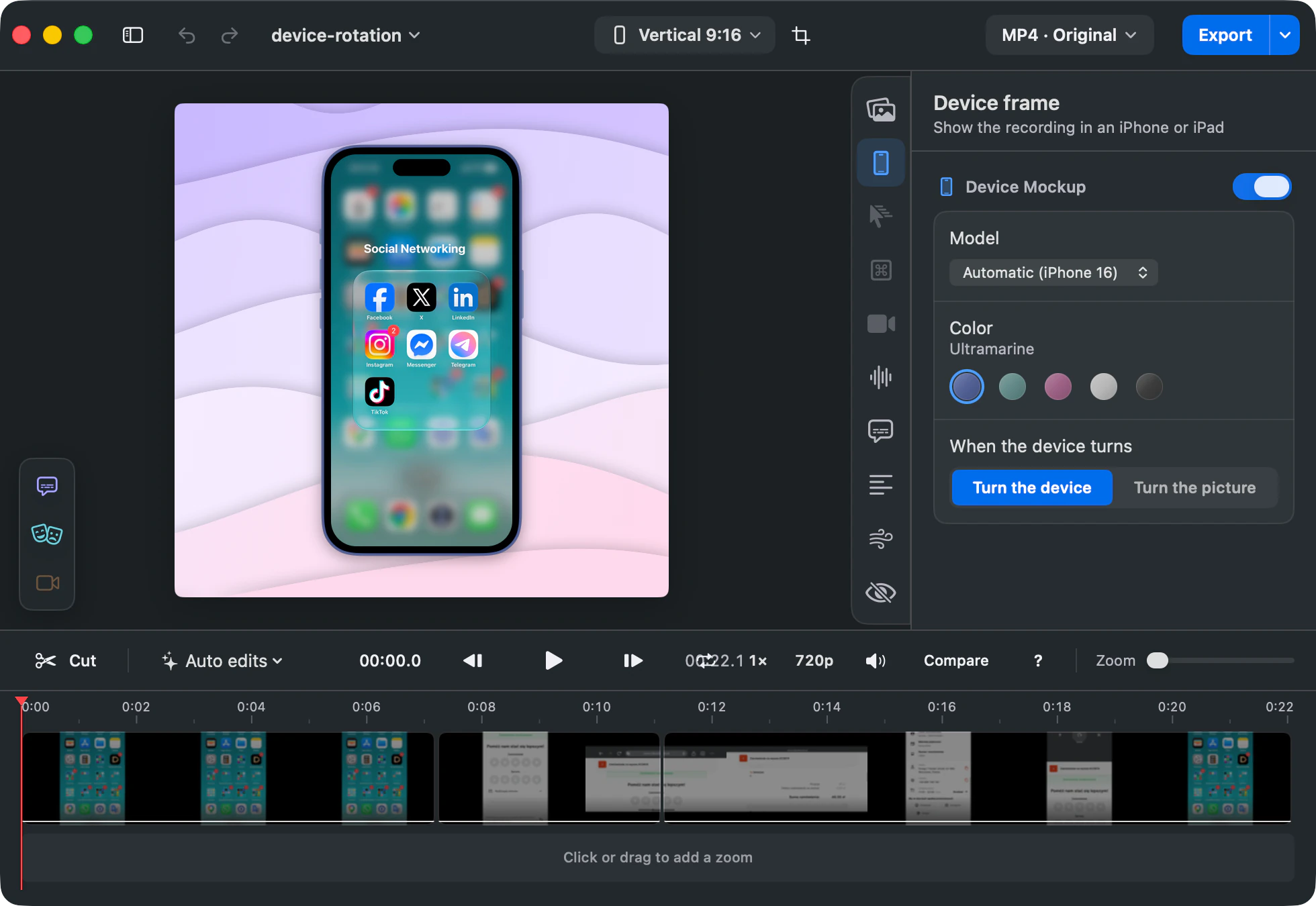
Show it in a real device
Your recording starts in the iPhone or iPad frame that matches it, on a background, ready to share.
- Open the Device tab to change the Model or Color.
- Turned the device while recording? Under When the device turns, choose Turn the device or Turn the picture.
To go without a frame, turn off Device Mockup.
Shared with me
Launch planToday
Brand notesYesterday
Customer callsMonday

If it doesn't show up
It's not in the list
It can take a few seconds to show up. If it still doesn't, unplug it and plug it back in while it's unlocked: macOS only connects to its screen when it's unlocked as it's plugged in.
It isn't sending its screen
Keep it connected and unlocked, tap Trust if it asks, and try again.
It has to be USB
Only devices connected with a cable show up.
More guides
Put your iPhone or iPad on screen.
Download for MacmacOS 14.6+ No key needed to start.