 SimplyShot
Take a scrolling screenshot. One clean image.
Long chats, full web pages, wide timelines. SimplyShot scrolls, stitches and hands you one clean image.
Download for MacAt your own pace
Drag over what you want, then scroll. A live preview shows the image growing as you go.
- Choose Scrolling Capture from the SimplyShot menu bar icon, or give it a shortcut in Settings → Shortcuts.
- Drag over the part that scrolls, then scroll at your own pace.
- Click Finish or press Esc when you're done.
Auto scrolls sideways too
Choose Auto and SimplyShot scrolls for you, even across tables and timelines wider than your screen. A header or column that stays put shows up once, right where it belongs.
- Choose Scrolling and drag over the part that scrolls.
- Click Auto, then pick a direction or press an arrow key.
- It stops at the end. Press Esc to finish sooner.
Auto needs Accessibility permission. If it's off, click More info in the bar to turn it on.
Trim the extra
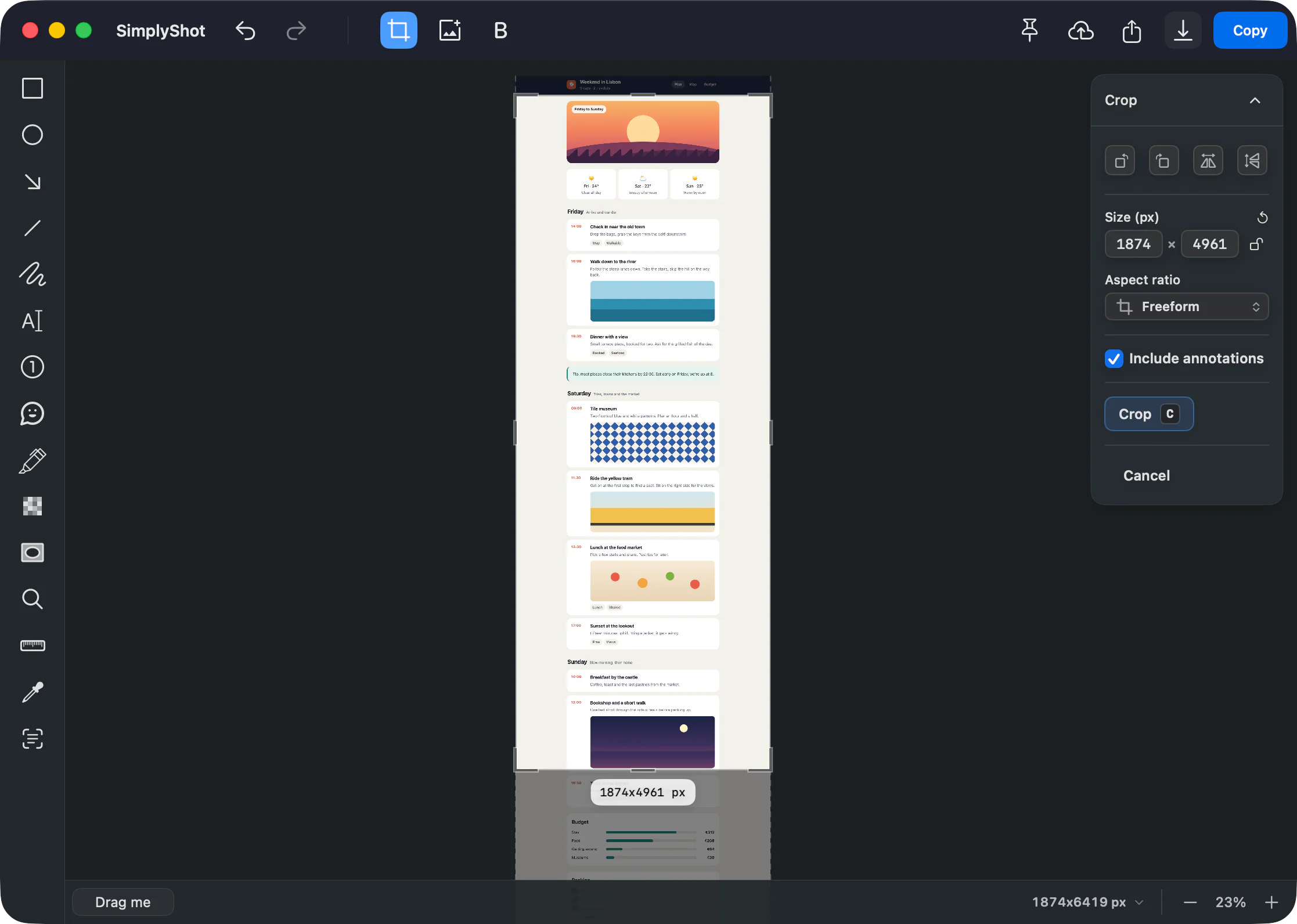
Caught a bit more than you wanted? Open the image in the editor and crop it. Drag the edges or type an exact size.
For the cleanest stitch
Static pages work best
Content that doesn't move or change while you scroll stitches the cleanest.
Select only what scrolls
Drag inside the window and leave out the scrollbars and anything else that stays put, like toolbars and floating buttons.
One sticky bar is fine
A single sticky header or column inside your selection is fine. Leave any others out.
More guides
Hide private info
Blur, pixellate or black out anything, or let SimplyShot find it for you.
Read the guideCopy text from an image
Copy words from anything on screen, and read QR codes and barcodes.
Read the guideRecord your iPhone or iPad
Plug it into your Mac, record it, and edit it like any other recording.
Read the guide
Try it on your longest page.
Download for MacmacOS 14.6+ No key needed to start.